Adding FiboSearch to Elementor templates
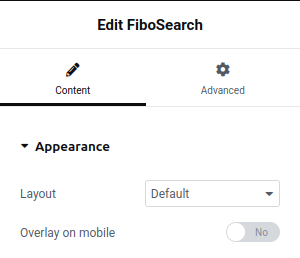
FiboSearch (both Free and Pro) includes a FiboSearch widget that you can add to any Elementor template. To use it, you need Elementor Pro version 3.6.0 or later. The widget lets you choose the layout (a search bar or an icon) and turn on the mobile overlay. Settings made in the widget override the global settings in WooCommerce > FiboSearch > Search bar.
Adding FiboSearch to the header
To add FiboSearch to an Elementor header, go to Elementor > Theme Builder > Header, open your header template and drag the FiboSearch widget into it:
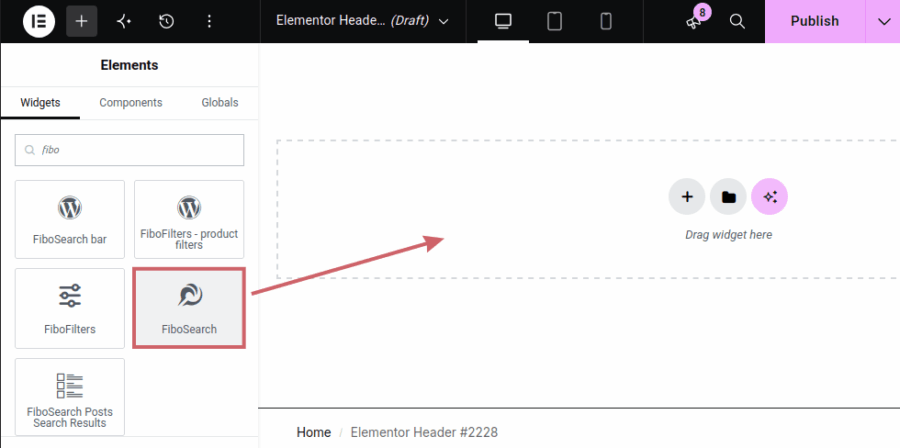
Note: the list also shows a widget called FiboSearch bar. Make sure you select the one called FiboSearch.
Adding FiboSearch to a popup
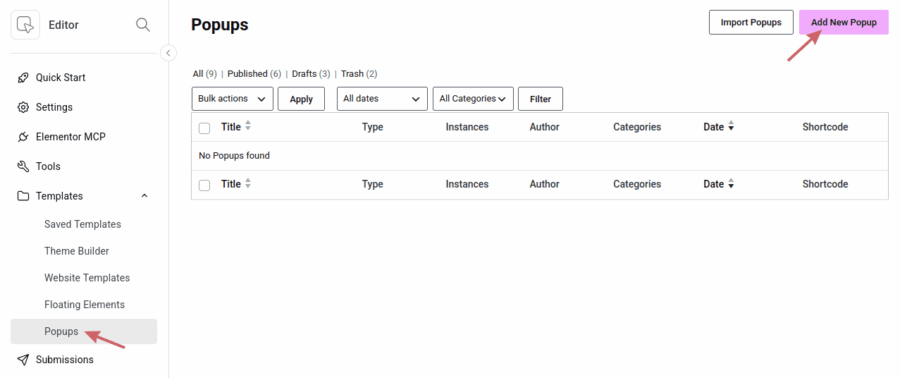
The FiboSearch widget also works inside an Elementor popup. First, create the popup in Elementor > Editor > Templates:
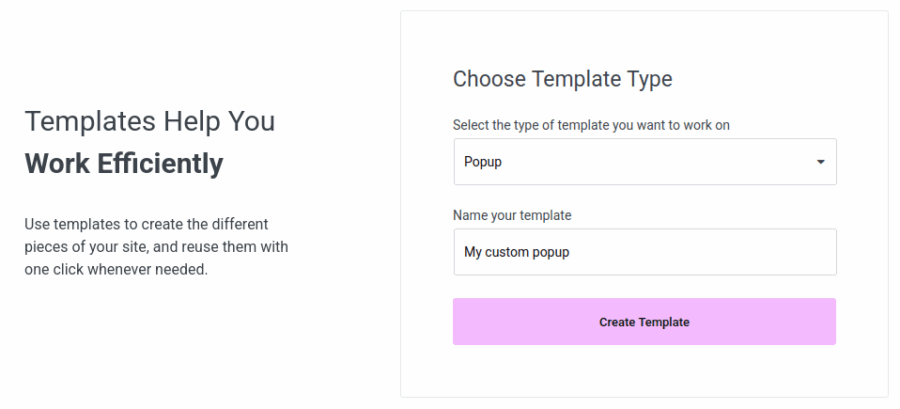
Give the popup a name:
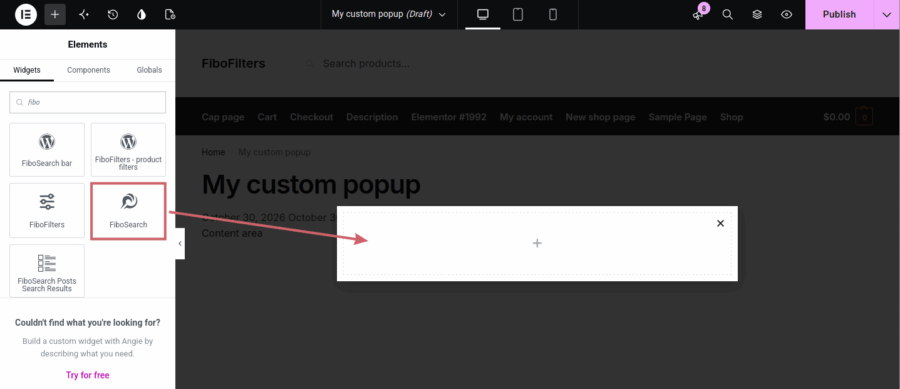
Drag the FiboSearch widget into the popup:
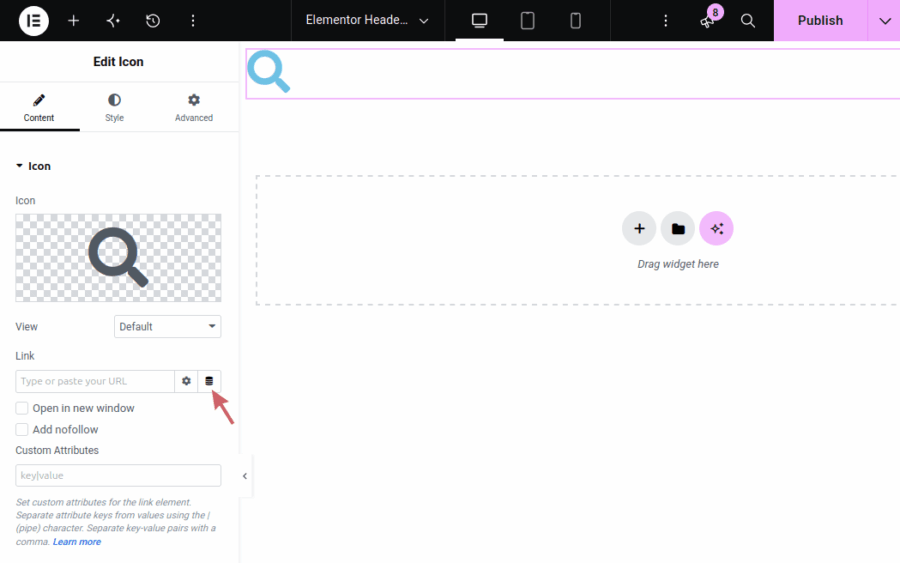
Add an icon or a button to a template and set its link to open the popup. The popup will appear when visitors click it.
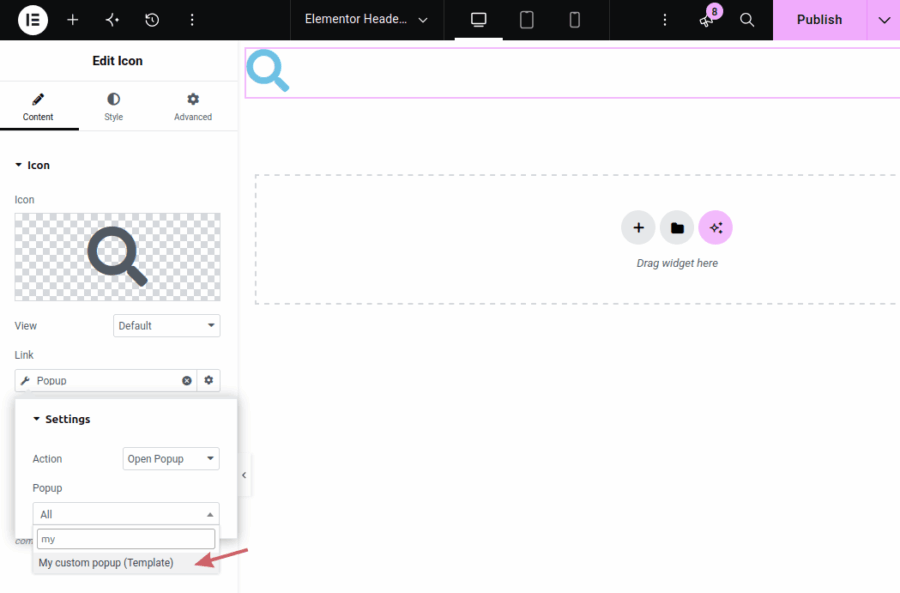
Read more about Elementor popups in FiboSearch loves Elementor.
Creating a search results page template
When you create an Elementor template for the products search results page, make sure it is a Products Archive template and that its conditions include Search Results. Inside the template, use the Archive Products widget to display the products. Read here how to create the template.
To display posts, pages, or custom post types on the search results page, use the FiboSearch Posts Search Results widget. This widget is available only in FiboSearch Pro after you enable searching in posts, pages or custom post types. Read more about it in this guide.