FiboSearch automatically integrates with the Bricks Builder theme. The minimum supported version of Bricks is 1.11.1.
Once you activate FiboSearch, it will replace all Bricks search forms and icons with FiboSearch. On the search results page, it will order products by relevance and use Bricks pagination.
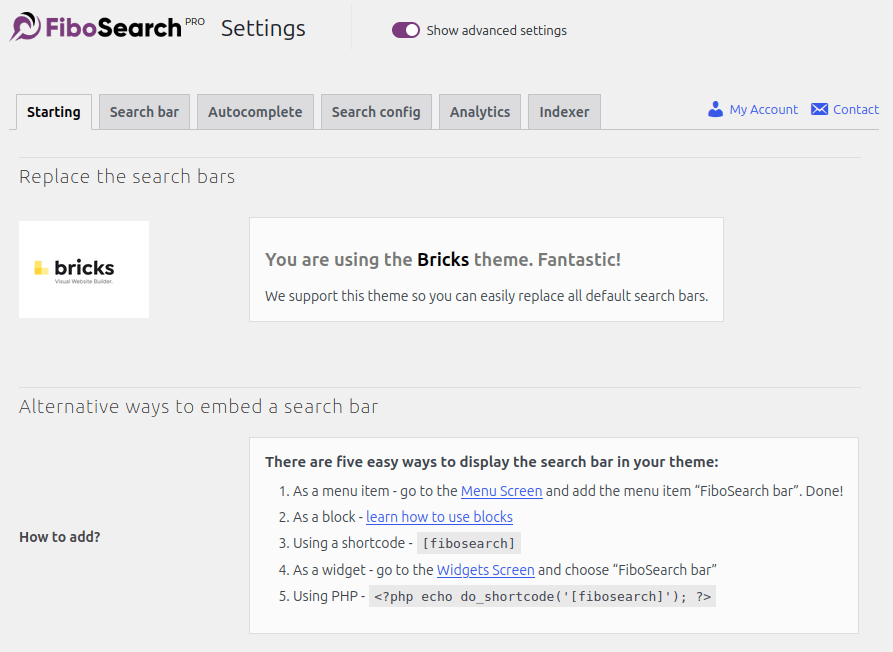
To check the status of the integration, go to WooCommerce > FiboSearch > Starting. You should see the following screen:
Adding FiboSearch to Bricks templates
The “General” tab in the FiboSearch settings lists the standard ways to embed FiboSearch in your theme. If you build your site with Bricks, you can also add FiboSearch directly to a Bricks template using either the Shortcode element or the Search element.
Using the Shortcode element
To add FiboSearch with the Shortcode element, place the element in your template and enter [fibosearch] as its shortcode:
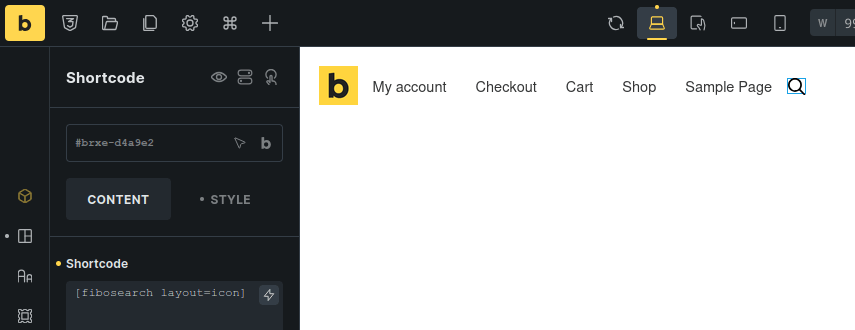
The FiboSearch shortcode accepts parameters that let you customize how the search looks. You can find the full list in the shortcode documentation.
Using the Search element
You can also embed FiboSearch with Bricks’ native Search element. FiboSearch automatically takes over the element, and its appearance depends on the element’s “Type” setting.
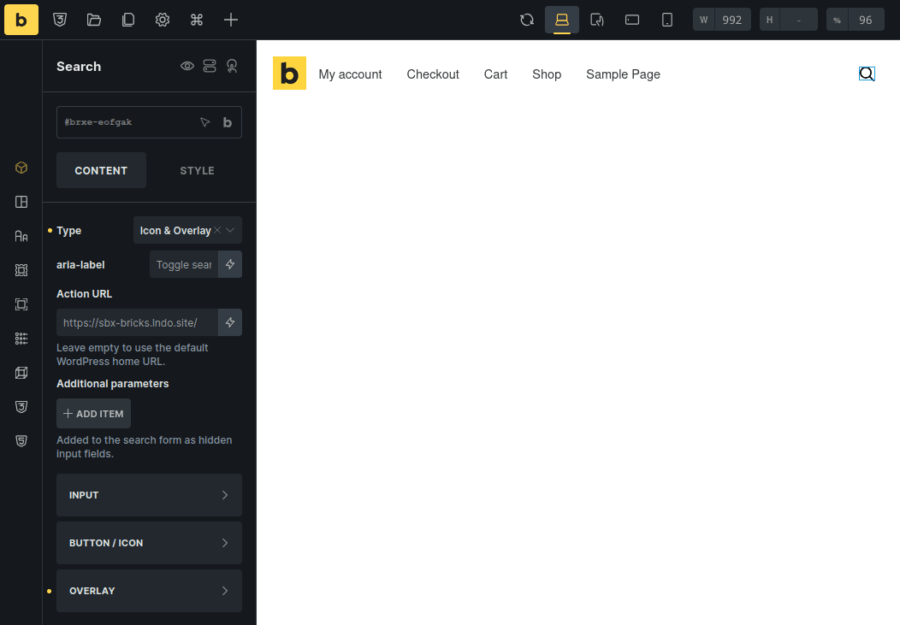
When “Type” is set to “Icon & Overlay”, FiboSearch displays as a search icon. When “Type” is set to “Input”, FiboSearch displays as a full search bar.
Bricks search results template
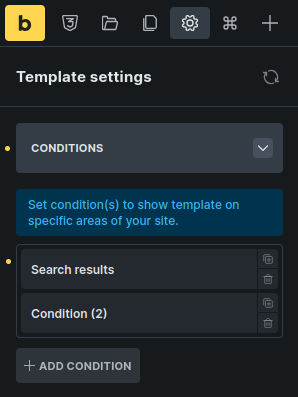
If you create a separate template for the product search results page, remember to set the template conditions to “Search results”:
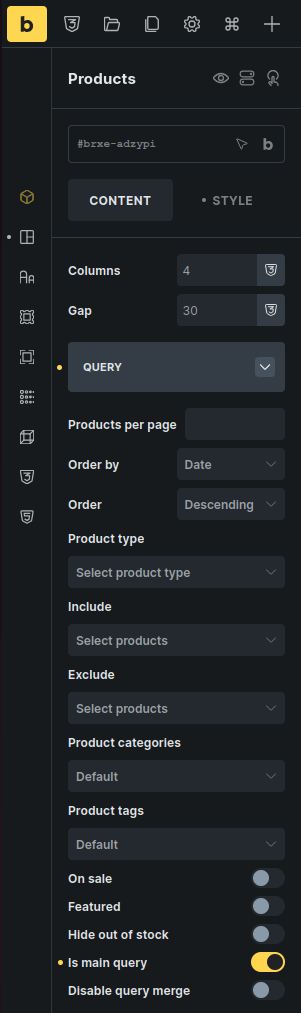
You will also need to set the “Is main query” option for the Products element. Otherwise, the search page won’t display FiboSearch results.